Bank statements and matching
Upload a bank statement
Download your team account’s statement as a CSV file, then upload it in the Match inbox. Clubtab matches what it can and asks you about the rest.
Last updated 5 October 2026
Upload your team account’s statement once a month and Clubtab matches the bank transfers and cash deposits to players for you. You don’t need to connect your bank.
Get the statement from your bank
In your online banking, find the team account and download a statement as a CSV file. Most banks call it “Export” or “Download transactions”. Pick the dates since your last upload; overlapping dates are fine, because Clubtab never adds the same line twice.
Upload it
- Open the Inbox tab.
- Choose Upload a statement and pick the file.
- If Clubtab doesn’t know your bank’s layout yet, it asks which column is the date, the amount and the description. It remembers your answer next time.
- Check the closing balance matches your banking app.
Check the matches
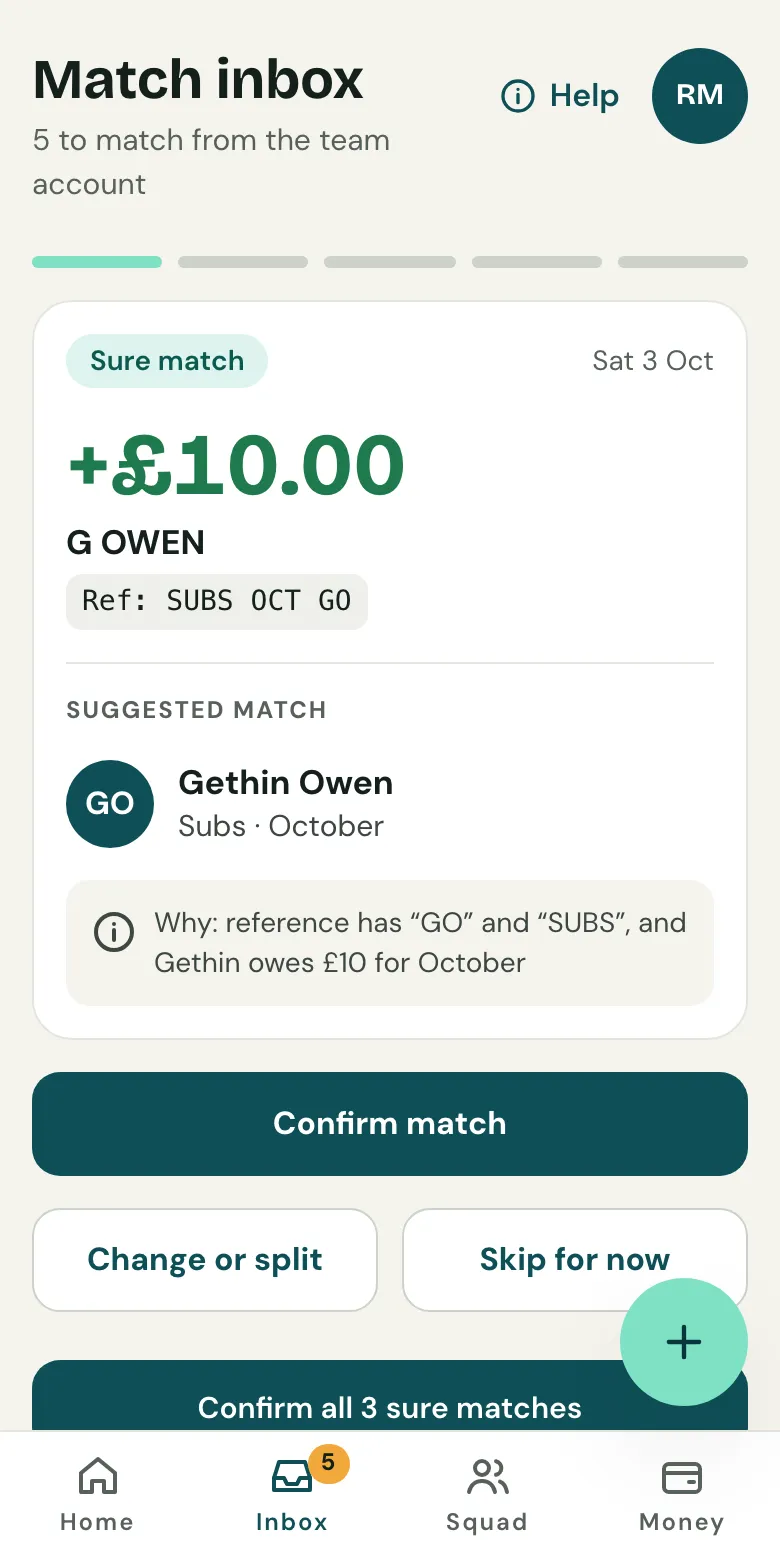
The Inbox shows one bank line at a time, with what Clubtab thinks it is and why:
- Sure match: an online payment, or a reference like “U8-GO SUBS”. Confirm them one by one, or all at once with Confirm all sure matches.
- Check this: Clubtab suggests a player and says why, like “reference has GO and SUBS, and Gethin owes £10 for October”. Choose Confirm match, or Change or split if it’s for someone else or for more than one thing.
- Skip for now leaves a line for later.
Lines Clubtab can’t place are never guessed: you pick who it’s from and what it’s for. Matches you confirm show under Matched for you, and every one can be undone.
Related guides
- Record cashOpen Money, then Cash, and record what you took. It shows on the player’s statement straight away, and Clubtab matches it when you bank it.
- Bring your spreadsheet with youUpload your team spreadsheet with a bank statement and Clubtab lines the two up. Anything that doesn’t match is shown to you, never guessed.
- Turn on online paymentsOpen Money, choose Take payments online and follow Stripe’s steps. It takes about ten minutes, and parents can pay from their statement straight after.
Still stuck? In the app, open Help and choose Contact support, or email [email protected]. We reply within one working day.