Running a club
Managers and join requests
Invite a manager to each team, or share the club's join code and poster. Choose whether you approve each person who uses it.
Last updated 7 October 2026
Get every team's manager onto Clubtab, with each one in the right team. Invite them one by one, or put the club's join code where they'll see it.
Invite a manager to each team
- On your club's set-up page, open Invite a manager to each team.
- Next to a team, choose Invite, then Send invite to their email, or Share a link on WhatsApp.
Each invite is a one-time link for one team, and expires after 14 days. Choose Resend if it's run out. Invite everyone left sends the rest in one go.
The join code and poster
The club's join code lets managers find the club and ask to join a team. Choose what happens when someone uses it:
- I approve each one: safer if the code gets shared widely.
- Let them straight in: best when the code is only on the clubhouse poster.
Someone asking to help run a team that already has a manager always needs your approval, whichever you choose.
Clubhouse poster prints an A4 page with the club's name, the code and a QR to scan. Choose Print or save as PDF.
Code shared too widely? Make a new one. The old one stops working at once, including on printed posters.
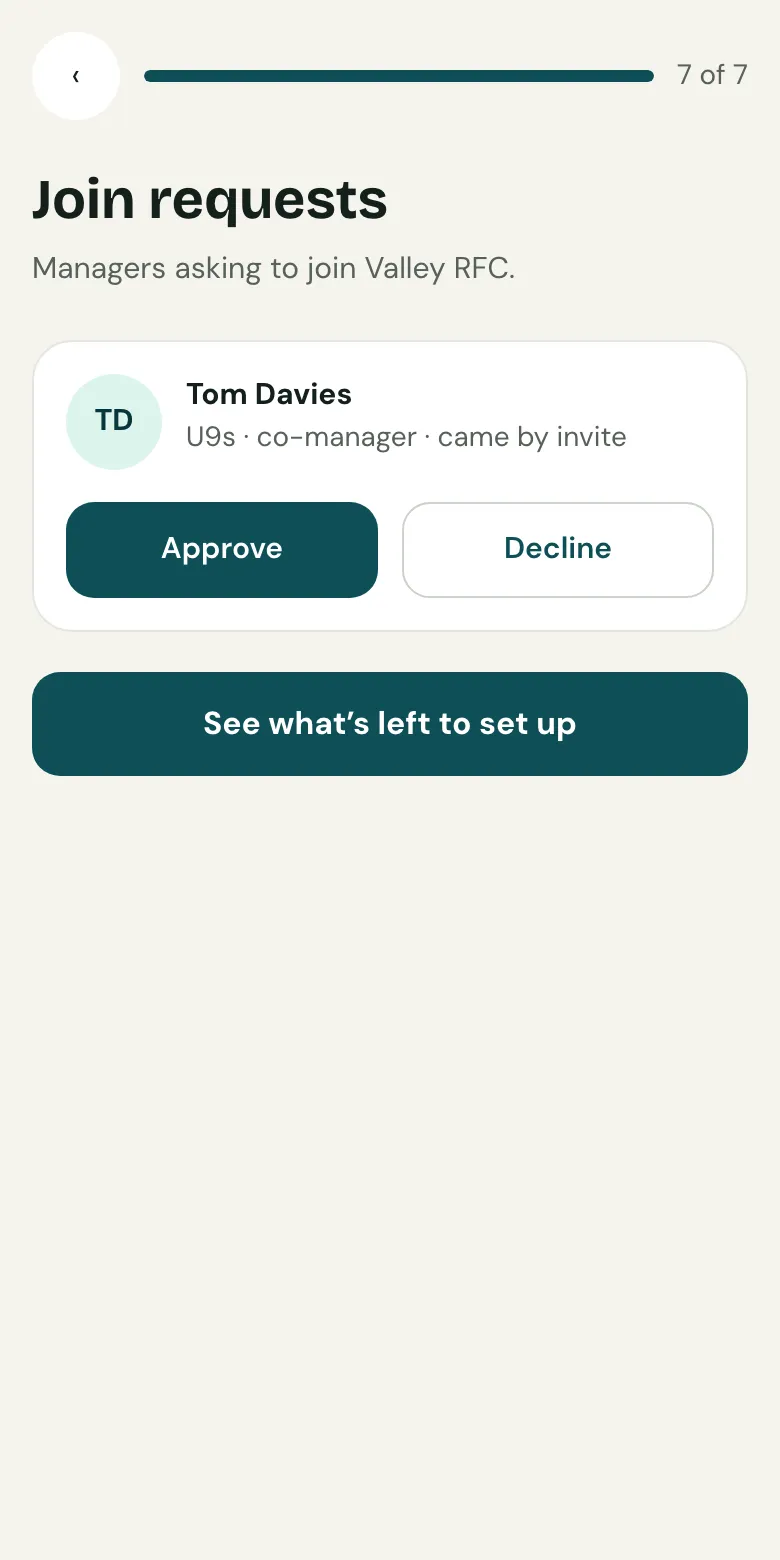
Join requests
Open Join requests from your club's set-up page. Choose Approve or Decline for each one. Requests you've decided stay on the list for 7 days.
Related guides
- Set up or claim your clubPut your club on Clubtab, or claim it if a manager already started it, then set the registration fee, season dates and teams.
- Invite a co-managerOpen Team managers and choose Invite a co-manager, by email or with a link. Co-managers can match payments, send requests and add receipts.
- The treasurer's viewEvery team's balance, pots, free to spend and money due to the club, in one read-only view, with exports for the AGM.
Still stuck? In the app, open Help and choose Contact support, or email [email protected]. We reply within one working day.